Mobile Printer-Print Documents
- 4.2
- Rating
- 100.00K
- Installs
- Free
- Price
 Analysis by App-foxy
I approached Mobile Printer-Print Documents as the kind of productivity app you open when a document needs to become a physical page quickly, not as something you browse for entertainment. That distinction matters. Printing from a phone can feel simple until a file, printer, connection, or paper setting refuses to cooperate. In my experience, the value of an app like this is measured less by its headline promise and more by how clearly it helps you identify where the problem actually is.
This Android app is developed by EZTech Global Limited and is available free of charge, with optional in-app purchases ranging from $5.99 to $34.99 per item. It has an Everyone age rating, works from Android 7.0 onward, and its current version is 1.1.6. The app has passed the early discovery stage with over 100K installs, while its average score sits at 4.2 from around 253 ratings. Those figures suggest a useful level of interest, although they do not remove the need to test it against your particular printer and printing routine.
Where printing usually gets stuck
The first thing I would tell a friend is not to assume that a failed print means the app is broken. Mobile printing is a chain: the document must be readable, the phone must be able to reach the printer, the printer must be ready, and the selected output must match the paper and task. A failure anywhere in that chain can look like the same vague symptom: nothing comes out.
You May Also Like

 Blood Strike: 2.5 Anniversary
Blood Strike’s Loadouts Turn Every Drop Into a Tactical Gamble
A close look at Blood Strike’s custom loadouts: how fast access to signature weapons reshapes its battle royale rhythm, rewards preparation, and narrows the gap between fights.

 Pandora - Music & Podcasts
Pandora’s Music Is Easy to Start, but Harder to Recover
Pandora’s strength is its low-effort path from a seed to a station. Its weak spot is how much confidence it asks you to place in connection, setup, and quiet recovery.

 8 Ball Pool
 Is Built on Rivalries, Rematches, and Routine
A close look at the rivalries, rematches, shared routines, and unanswered safety questions that turn a quick pool match into a persistent mobile community.

 Samsung Music
’s Quiet Strength Is Playing What You Already Own
Its reach comes less from spectacle than from dependable access to a personal library. That simplicity is both the app’s strongest retention engine and its ceiling.

 AccuWeather: Weather Radar
AccuWeather Review: A Quick, Clear Forecast for Everyday Decisions
For everyday plans, the best forecast is the one you can understand quickly. AccuWeather makes rain timing, radar, and local conditions easy to act on, with a few trade-offs.

 Hill Climb Racing
Why Hill Climb Racing Still Turns Crashes Into One More Run
A tiny car, a bumpy hill and one more upgrade: Hill Climb Racing keeps resurfacing because its simple chaos makes every near-miss feel personal.
More From Our News Desk
View All News


The most common point of confusion is discovering a printer but not completing a print job. Seeing a device name is not always the same as having a usable connection. The printer may be asleep, busy with another job, connected to a different network, or waiting for paper or ink. I find it helpful to treat the printer’s own status as a separate checkpoint rather than repeatedly tapping print inside the app.
Documents create a second source of friction. A short text file and a complex document with unusual fonts, images, or carefully arranged pages do not always behave identically when prepared for printing. If one file fails while another works, I would investigate the file before changing every phone setting. Trying a simpler document is a practical diagnostic step because it separates a document-format issue from a connection issue.
Another easy mistake is choosing the wrong output expectation. A user may want a single page, a complete document, a particular page range, or a clean copy without unnecessary blank pages. Before confirming a job, I check the page order and the intended range. This small pause can prevent wasted paper, especially when the file contains cover pages, attachments, or pages that were added for on-screen reading rather than printing.
What I check before blaming the application
I start with the physical printer. It should be powered on, not showing an error, and ready to accept work. I also check the paper tray and any visible warning lights. If the printer has been idle for a while, waking it manually is worthwhile. A phone can be perfectly prepared while the printer is still in sleep mode or waiting for a basic intervention.
Next, I confirm that the phone and printer are using the connection arrangement expected by the printer. A phone may appear to be online while the printer is unreachable from that same path. If the printer is connected through a home or office network, I avoid switching the phone between networks during setup. If the printer uses a direct connection method, I follow the printer’s own instructions rather than assuming the app can replace them.
I then close unrelated printing screens and reopen the document. This is not glamorous troubleshooting, but it clears up a surprisingly common source of confusion: an old job, a stale printer selection, or a screen that looks ready even though the connection has changed. I prefer making one change at a time, because changing the network, restarting the printer, replacing the file, and reinstalling the app together makes it impossible to know what fixed the problem.
Finally, I look at the document itself. If it was downloaded from a message or cloud service, I make sure it is fully available on the phone rather than merely visible as a preview. I also test a file with straightforward formatting. That test does not prove every file will print perfectly, but it quickly tells me whether the basic route from phone to printer is functioning.
A setup routine that saves time
My preferred setup routine is deliberately boring. I prepare the printer first, open the file second, select the printer third, and review the output before sending it. This order avoids selecting a printer that later becomes unavailable and reduces the temptation to send the same job repeatedly when the first attempt is simply taking time.
For an important document, I begin with a small test rather than the full file. A single page can reveal whether the printer is reachable, whether the text is legible, and whether the page orientation looks right. Once that works, I send the complete document. This is especially useful at a workplace, school, or shared home printer where a failed large job can delay other people.
I also keep the first test visually simple. If the document contains photographs, tables, or unusual page layouts, I do not use it as my first connection test. A plain page provides a cleaner answer. After the basic path works, I can investigate formatting separately instead of treating every visible problem as a network failure.
One practical trade-off is convenience versus control. A mobile printer app can be faster than transferring a document to a computer, but a computer-based printing workflow may expose more detailed layout controls. I would use this app when speed and phone-based access matter most, while keeping a desktop option available for documents where margins, scaling, or advanced finishing must be exact.
Recovering a workflow when the first attempt fails
When a job does not appear, I resist pressing the print control over and over. Multiple submissions can create duplicate pages once the printer catches up. Instead, I check whether the printer has received anything, look for a pending or paused job, and confirm that the document is still open in the expected form. If there is evidence that the printer is processing, I wait rather than creating another copy.
If nothing happens, I return to the smallest useful test. I try the same printer with a simpler document, then compare the result. If the simple file prints, the connection is probably not the main issue; I would focus on the original file’s structure, page range, or rendering. If the simple file also fails, I move back toward the printer and connection checks instead of repeatedly editing the document.
A useful recovery habit is to change only one variable. For example, I may restart the printer while leaving the phone and file untouched. If that does not help, I may reconnect the phone using the printer’s normal connection path. If the problem remains, I try a different document. This slower method feels less efficient, but it produces a much clearer diagnosis than making several changes at once.
I also pay attention to whether the issue is repeatable. A one-time failure after the phone moves between networks is different from a problem that affects every document. Repeatability matters because it tells me whether I am dealing with a temporary state or a compatibility limitation. I would not judge the app harshly for a single interrupted job, but I would reconsider it if the same basic workflow fails consistently with a known-ready printer.
How I handle document-specific problems
When only one document causes trouble, I make a copy and simplify it outside the printing step where possible. Removing unnecessary pages, exporting the content into a more ordinary document form, or printing a smaller section can reveal whether one element is causing the failure. I do not treat this as a guaranteed fix for every file, but it is a sensible way to narrow the problem without risking the original.
For long documents, I prefer printing in sections when the first complete attempt is unreliable. This is not ideal, and it can make page management more important, but it limits wasted paper and makes it easier to identify the troublesome portion. If the first section works and a later section does not, I have a much better starting point than I would get from repeatedly sending the entire file.
Page appearance deserves its own check. A document that looks correct on a phone may not look identical on paper because the display is not the final physical page. I review orientation, obvious clipping, and blank pages before committing to a larger job. For forms, applications, and official documents, I would always inspect the first printed page rather than assuming the screen preview tells the whole story.
There is also a human factor: people often test printing while rushed. That encourages them to tap through warnings and ignore the printer’s physical state. My advice is to spend a minute establishing whether the printer is ready and whether the file is complete. That minute is usually cheaper than repeating a full document or discovering after the fact that the wrong pages were printed.
When the app is not the cause
Printing depends on hardware and connectivity, so the app cannot solve every failure. A printer with an empty tray, a paper jam, a low-supply warning, or an internal error can reject a job regardless of which mobile tool sends it. In that situation, changing applications may only hide the real issue temporarily.
The same applies to network arrangements. If the phone and printer cannot communicate through the current setup, an app may show limited or inconsistent results. I would verify the printer’s connection using its own controls or instructions and make sure the phone has not silently moved to another network. If other devices also cannot reach the printer, the wider connection is the stronger suspect.
There are cases where the usual alternative is better. If your printer already works reliably through the operating system’s built-in print service, that route may be simpler because it avoids adding another layer. If you regularly print from many different devices, a manufacturer-specific application may offer more direct handling for that printer family. And if your work depends on precise page composition, a computer with a full document editor remains the safer choice.
That does not make Mobile Printer-Print Documents pointless. Its appeal is the short path from a phone-held document to a physical copy. It can be a practical fallback when you do not want to move a file to a laptop, and it fits people who print occasionally rather than managing a large office queue. The important limitation is that convenience should not be confused with universal compatibility or advanced desktop control.
Who will get the most from it
I see the strongest fit for students, home users, travelers, and small teams that sometimes need to print a document stored on a phone. A student might receive a form, open it on the phone, check the pages, and print it without first sending the file to another device. A parent could use the same basic workflow for a school notice or permission document. In both cases, reducing transfers is the main benefit.
It also makes sense for someone who prints irregularly and does not want to maintain a complicated setup. The free entry point makes it easy to try, although the presence of optional purchases means I would pay attention to any screen that presents an upgrade during use. I would decide based on the actual workflow rather than assuming every useful function requires payment or that every function is included without conditions.
I would be more cautious if you need dependable high-volume printing, exact professional layout, or a workflow shared by many people. Those needs usually reward a stable computer setup, a printer’s dedicated software, or an established operating-system service. This app is better judged as a convenient mobile route than as a replacement for every printing environment.
My everyday test scenario
Imagine I receive a multi-page document while away from my desk and need a paper copy before leaving home. I first wake the printer and check paper, then open the document on my phone and confirm that the file is fully available. I select the printer, begin with a short test or the first page, and inspect the result for orientation and readability.
If that page works, I send the remaining pages and avoid tapping the control again while the printer is processing. If the first page fails, I do not immediately blame the app. I check the printer status, confirm the connection path, and try a simpler file. That sequence tells me whether I am dealing with a printer state, a connection problem, or something particular to the document.
This scenario captures the app’s real strength: it can remove the laptop from a small but urgent task. It also shows its boundary. The app helps organize the mobile side of printing, but it cannot make an unavailable printer ready, repair a damaged document, or guarantee that every complex layout will translate perfectly to paper.
My practical verdict
After looking at the complete workflow, I consider Mobile Printer-Print Documents a reasonable tool for occasional Android printing, especially when the document is already on the phone and the printer is properly prepared. Its usefulness comes from reducing unnecessary file transfers, not from replacing every more established printing method.
The rating of 4.2 and the growing install base make it worth trying, but I would keep expectations practical. The app is not the right answer for every printer, every document, or every professional layout requirement. Its success depends on a clean connection, a ready printer, and a file that behaves sensibly when converted into a physical page.
My recommendation is to install it if your main need is quick phone-to-printer access with a simple recovery routine. Test it first with a basic document, check the printer before sending a larger job, and treat repeated failures as a compatibility or hardware investigation rather than an invitation to keep pressing print. For casual and urgent printing, that balance makes it useful; for demanding production work, I would choose a more specialized or desktop-based workflow.
FAQs for Mobile Printer-Print Documents
01What is Mobile Printer-Print Documents, and what can it do?
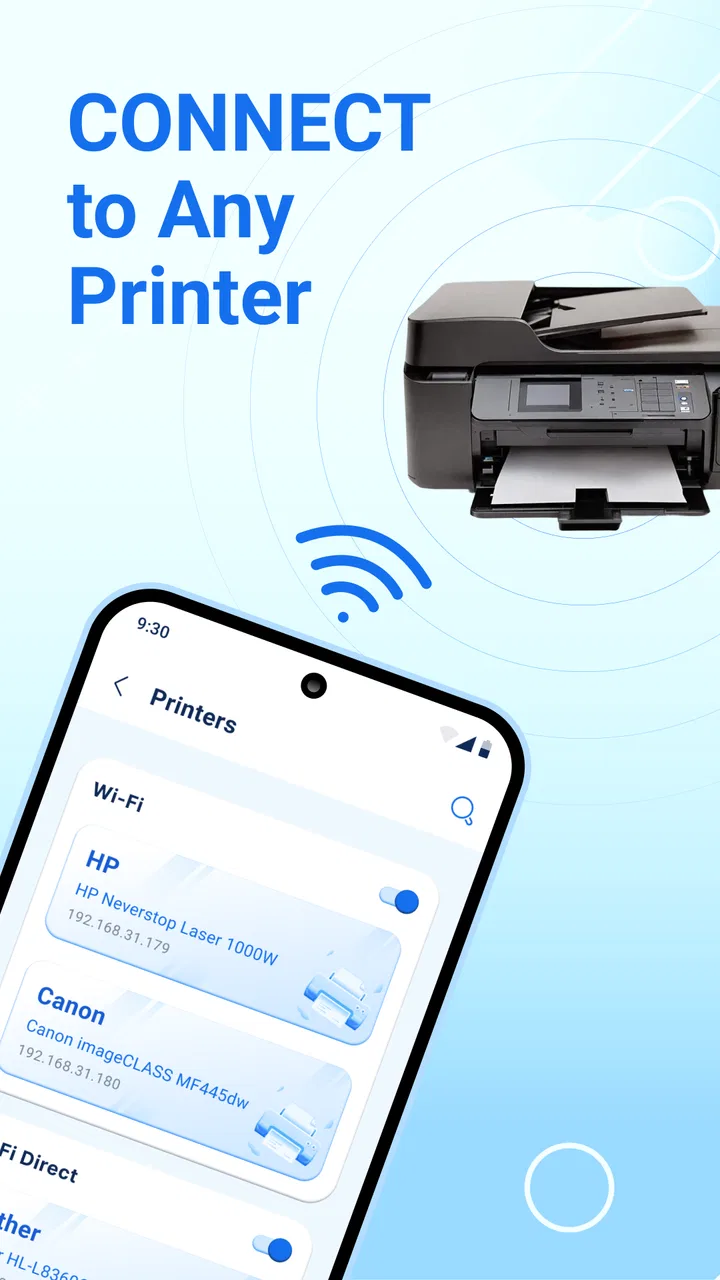
Mobile Printer-Print Documents is a mobile printing app designed to help you print files, photos, web pages, and other content directly from an Android or iOS device. It can be useful when you need to print without opening a computer, provided your printer is compatible and connected through the same Wi-Fi network, Bluetooth, or another supported connection method.
02Which printers are compatible with Mobile Printer-Print Documents?
Compatibility depends on the printer model, operating system, and connection method supported by the app. Many modern wireless printers may work through Wi-Fi or a printer’s network service, while some devices may require a manufacturer-specific plugin or companion application. Before downloading, check the app listing and your printer’s documentation to confirm that your model and phone are supported.
03Can I print documents and photos from my phone?
Yes, the app is intended for printing common mobile content such as PDF files, office documents, images, and possibly web pages or text files. The exact formats available can vary by device and app version. Some documents may need to be saved locally or opened through the phone’s file manager before they appear as selectable printing sources.
04Does Mobile Printer-Print Documents require an internet connection?
An internet connection is not always necessary for every printing task. If your phone and printer communicate directly over the same local Wi-Fi network, printing may work without mobile data or continuous internet access. However, internet access could be required for downloading the app, accessing cloud files, displaying advertisements, updating printer services, or using online storage integrations.
05Is Mobile Printer-Print Documents free to use?
The app may be available as a free download, but some features can depend on advertising, in-app purchases, subscriptions, or limitations in the free version. Potential restrictions may include advanced document options, cloud printing, ad removal, or access to certain printer functions. Review the current store description and pricing details before downloading to understand the complete cost.
Pros
- Prints documents and photos directly from your mobile device.
- Supports common file formats for convenient everyday printing.
- Simple interface makes printer setup easy for most users.
- Useful for quick printing when you are away from a computer.
- Can help preview documents before sending them to print.
Cons
- Compatibility may vary between printer brands and models.
- Some advanced printing options may require a paid upgrade.
- Wireless printing depends on a stable Wi-Fi connection.
- Large files or high-resolution photos may take longer to process.
- The app may request access to files
- photos
- or nearby devices.

Mobile Printer-Print Documents
Gallery